Building a Login System with FastAPI, Google OAuth, and JWT
oauthpythondjango
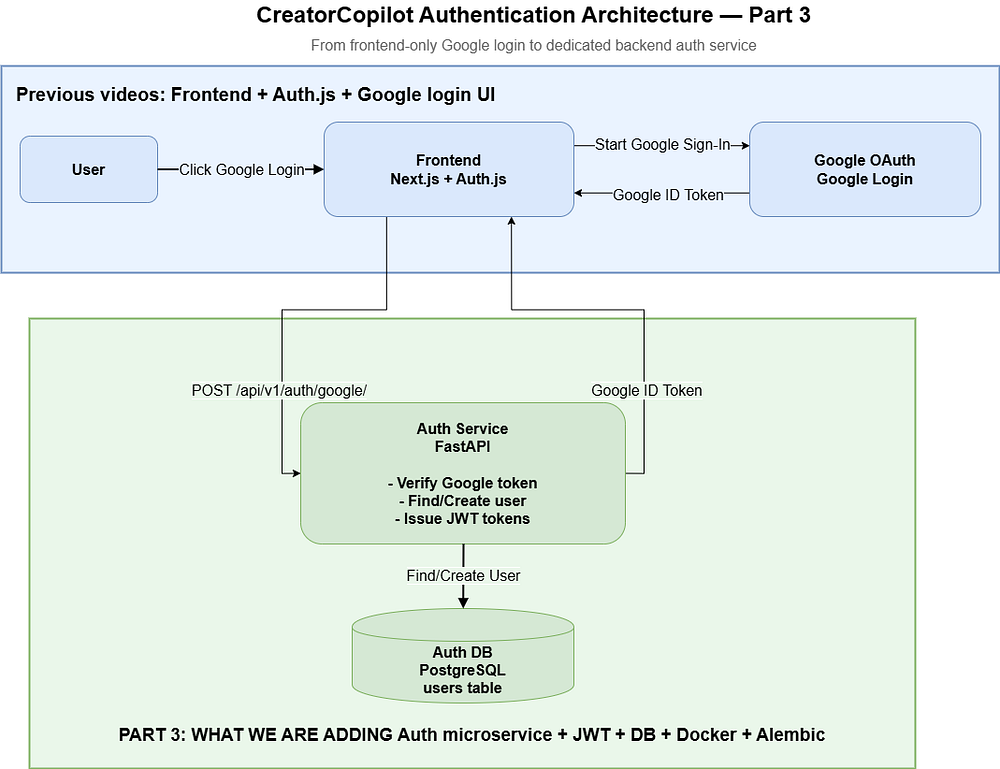
In this part of the CreatorCopilot series, we are building a dedicated authentication service using ...
121

Most articles about “useful Python scripts” make the same mistake.
They give you a list of scripts that are technically correct but practically useless. A random password generator. A number guessing game. A script that fetches quotes from an API. They look fine in a tutorial, but almost nobody uses them in real life.
What people actually find useful are small scripts that remove tiny frustrations from daily work. The kind of annoying, repetitive tasks you don’t think much about until you realize you’ve been wasting time on them for months.
That is where Python becomes genuinely valuable.
Below are seven practical Python scripts that automate everyday tasks many people deal with regularly. They are short, simple, and easy to customize.
The Downloads folder becomes a mess faster than almost any other folder on a computer.
PDFs, screenshots, ZIP files, installers, random images, documents you needed once and forgot about two minutes later — everything ends up there.
This script helps by doing two things:
deleting files older than a certain number of days
moving common file types into organized folders
import shutil
import time
from pathlib import Path
DOWNLOADS = Path.home() / "Downloads"
DAYS = 7
folders = {
    "Images": [".png", ".jpg", ".jpeg"],
    "Docs": [".pdf", ".docx", ".txt"],
    "Archives": [".zip", ".rar"],
}
for file in DOWNLOADS.iterdir():
    if file.is_file():
        age = time.time() - file.stat().st_mtime
        if age > DAYS * 86400:
            file.unlink()
            continue
        for folder, exts in folders.items():
            if file.suffix.lower() in exts:
                dest = DOWNLOADS / folder
                dest.mkdir(exist_ok=True)
                shutil.move(str(file), dest / file.name)
                break
This is one of those scripts that feels small until you run it a few times and realize your Downloads folder stopped being a landfill.
Renaming files manually is one of those tasks that feels harmless until you have to rename fifty of them.
It happens all the time with downloaded images, exported files, screenshots, scanned documents, and datasets.
This script renames every file in a folder using a consistent format.
import os
folder = "files"
prefix = "photo_"
for i, filename in enumerate(os.listdir(folder), start=1):
    old_path = os.path.join(folder, filename)
    if os.path.isfile(old_path):
        ext = os.path.splitext(filename)[1]
        new_name = f"{prefix}{i}{ext}"
        new_path = os.path.join(folder, new_name)
        os.rename(old_path, new_path)
You can adapt this for almost anything:
invoice_1.pdf, invoice_2.pdf
lecture_1.mp4, lecture_2.mp4
dataset_1.jpg, dataset_2.jpg
The point is not that renaming is hard. The point is that it is boring, repetitive, and exactly the kind of thing a script should do instead of you.
If you run a blog, portfolio, documentation site, or any content-heavy website, image size matters.
Large PNG and JPEG files slow pages down. That affects user experience and, indirectly, search performance as well.
WebP usually gives you smaller file sizes without making you do much work. This script converts every image in a folder to WebP.
from PIL import Image
import os
folder = "images"
for file in os.listdir(folder):
    if file.lower().endswith((".png", ".jpg", ".jpeg")):
        input_path = os.path.join(folder, file)
        output_name = os.path.splitext(file)[0] + ".webp"
        output_path = os.path.join(folder, output_name)
        img = Image.open(input_path)
        img.save(output_path, "WEBP")
This is useful if you regularly prepare images for:
blog posts
landing pages
product screenshots
portfolio case studies
Doing this manually once is fine. Doing it every week is pointless.
Most people do not notice storage problems until the laptop starts complaining.
Then comes the usual routine: open storage settings, stare at vague categories, delete a few random files, and hope that somehow fixed the problem.
A better way is to simply find the largest files directly.
import os
path = str(Path.home())
files = []
for root, dirs, filenames in os.walk(path):
    for f in filenames:
        fp = os.path.join(root, f)
        try:
            size = os.path.getsize(fp)
            files.append((size, fp))
        except OSError:
            pass
for size, file in sorted(files, reverse=True)[:10]:
    print(f"{size // (1024 * 1024)} MB - {file}")
This script often reveals the real issue quickly:
old video files
forgotten screen recordings
duplicate backups
unused datasets
Storage problems usually look mysterious until you inspect them properly. Then they are often embarrassingly obvious.
A lot of tools export data as CSV because it is simple and universal.
The problem is that many people still prefer Excel files when sharing reports or opening data quickly. So the same small annoyance keeps repeating: download CSV, open it, save it again as .xlsx, send it.
That is unnecessary.
import pandas as pd
df = pd.read_csv("data.csv")
df.to_excel("data.xlsx", index=False)
This becomes useful more often than people expect, especially for:
analytics exports
scraped data
internal reports
form responses
It is not glamorous, but that is exactly why it is worth automating.
If you have a personal website, a side project, or even a simple portfolio, downtime matters.
Not because your site is handling millions of users, but because broken things usually stay broken longer than you think when nobody is checking them.
This script sends a request to your site every minute and tells you when something is wrong.
import requests
import time
URL = "https://yourwebsite.com"
while True:
    try:
        response = requests.get(URL, timeout=5)
        if response.status_code != 200:
            print(f"Website issue detected: {response.status_code}")
        else:
            print("Website is up")
    except requests.RequestException:
        print("Website is DOWN")
    time.sleep(60)
For serious monitoring, there are dedicated tools. But for a lightweight personal setup, this is more than enough to start.
And that is the broader point: not every problem needs a SaaS subscription.
Sometimes you want to keep a copy of a webpage for offline reading, documentation, or archiving.
Maybe it is a tutorial you know you will revisit. Maybe it is documentation that could change later. Maybe you just want a local copy instead of relying on a tab staying open forever.
This script turns a webpage into a PDF.
import pdfkit
url = "https://example.com"
pdfkit.from_url(url, "page.pdf")
This is useful for saving:
tutorials
documentation pages
articles
reference material
Small script, very real use case.
The best Python scripts are usually not impressive in the traditional sense.
They are not giant systems. They are not clever algorithms. They are not the kind of projects people post to show off advanced engineering.
They are small, practical tools that quietly remove friction from daily life.
That is what makes them valuable.
A useful script does not need to be revolutionary. It just needs to save you from doing the same dull task again and again.
And once you start thinking that way, Python stops feeling like just a programming language. It starts feeling like a tool for building your own shortcuts.
🔥 Found this blog post helpful? 🔥
If you enjoyed this article and found it valuable, please show your support by clapping 👏 and subscribing to my blog for more in-depth insights on web development and Next.js!
Subscribe here: click me
🚀 Follow me on:
🌐 Website: sagarsangwan.dev
🐦 Twitter/X: @sagar sangwan
🔗 LinkedIn: Sagar Sangwan
📸 Instagram: @codingbysagar
▶️YouTube: @codingbysagar
Your encouragement helps me continue creating high-quality content that can assist you on your development journey. 🚀

Code. Write. Build. Explore. 💻✍️ Software developer by day, mechanical tinkerer by night. When I’m not shipping code or writing blogs, you’ll find me trekking up a mountain, whipping up a feast, or hitting the open road on two wheels. Life is better in high gear.
View more blogs by me CLICK HERE
In this part of the CreatorCopilot series, we are building a dedicated authentication service using ...

Learn how to implement production-ready Google OAuth in Next.js using Auth.js (NextAuth v5) with App...

A practical guide to protecting your APIs from bots using rate limiting, request throttling, caching...
Subscribe to get the latest posts delivered to your inbox